

Many web pages are updated after publication, which can make it difficult to know whether you are reading the most updated information.
Knowing the most recent date of updates to an article can help verify its accuracy.
Use the following step-by-step guide to learn the best way to check the last modified date of a web page!
How to Check When a Web Page Was Last Updated
Most pages published on the Internet have a publication date and last updated date attached to it. But sometimes, website owners may not post this information. So we would need to use other methods to find out when a page was last updated to validate its relevance and recency.
The last modified date lets you know when the web site owners last made changes to the page content.
This may include minor changes or major changes.
1. Check the blog post’s last update date
The first method is the easiest one. See if there is a publishing date or last updated date on the blog post.
Some website administrators choose to update the publishing date shown at the top of blog posts after any change to its content.
For example, I’m using Elementor to build my website and can set up a last update date function for every blog post.

So at the top of the post, you can see the last updated date of the article. This helps my readers know that they are getting the most recent and relevant information.
You can also find the date of the last major update using various technical elements, such as the HTTP header or the XML sitemap.
You should have no problem checking the published date and date of the last major update for any web page with the following methods:
2. Check the HTTP Header
You can look at the HTTP header to find the last modified date of a static web page.
The data contained in the header includes a timestamp of the date that the file was last modified.
Every HTTP request and response includes HTTP headers.
Response headers contain information about the file that you request, for example, a web page.

Check last-modified field using a free tool
I’m using a free online tool, Keycdn to quickly check the HTTP header of any URL.
Response headers include descriptions of the last modified date, cookie settings, content type, path, current date, server type, and other useful details.
Web servers generate the most response headers.
However, website administrators may also customize the headers to suit their needs, such as adjusting the timeframe for storing cookies.
Google Developer Tools
Open the Developer Tools in Google Chrome which allows you to view the last-modified field from HTTP headers.
- Right-click on the webpage and select “Inspect”.
- The “Network” tab includes all the requests that occur when you load a web page.
- Reloading the page and selecting the HTML page will display the HTTP headers in a tab on the right.
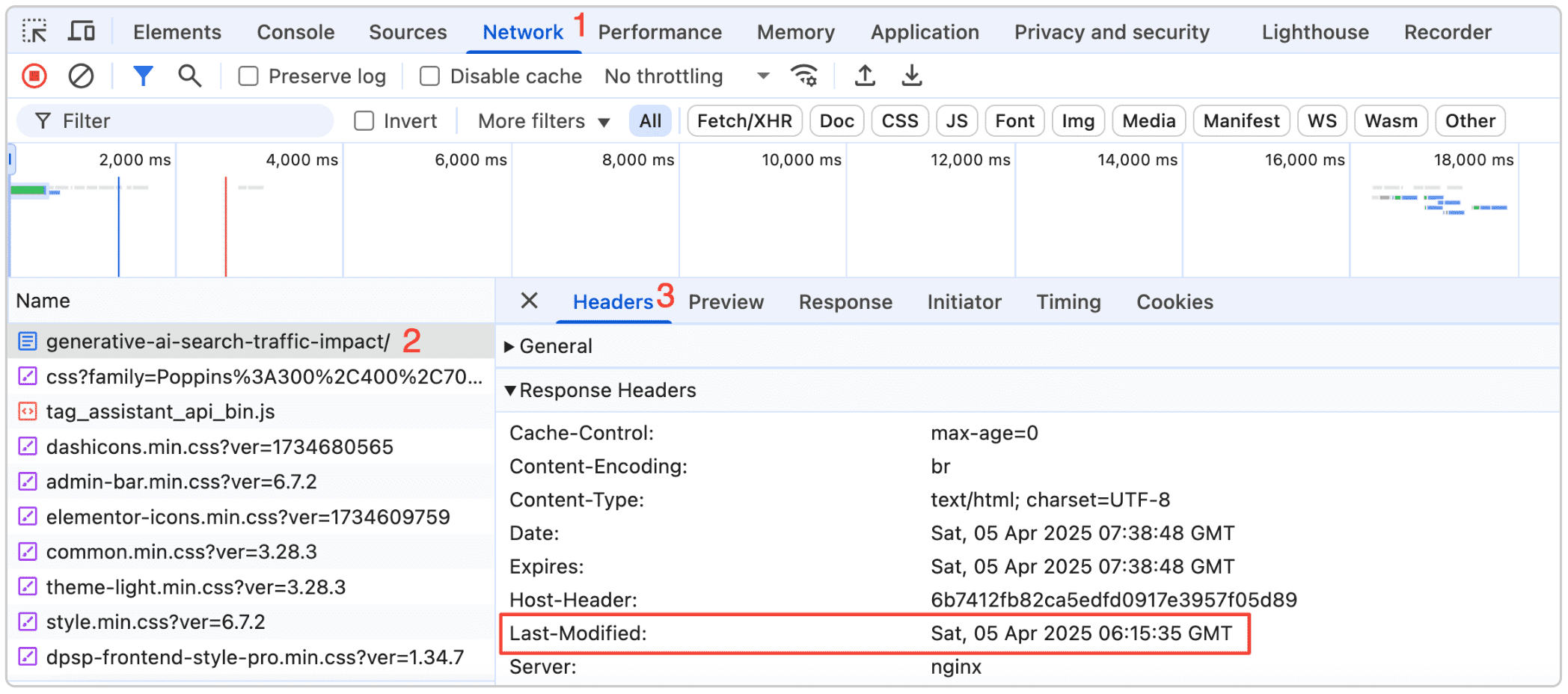
You can also use Developer Tools on Android phones, such as Pixel phones.
View page source
Alternatively, you can also right-click on a webpage and select “view page source”.
This shows you the source code of the page which includes metadata, including the published time and modified time for the page.

Keep in mind that the date that appears in HTTP response headers and metadata may not always match the last date of a website update.
Dynamic webpages with server-generated content may include the current date as the date that the last update occurred.
The accuracy of the date in the HTTP headers and metadata depends on the website administrators and the type of content management system used.
Some systems may use a different way of updating time and date information.
3. Last modified date in XML Sitemap
You can use the XML sitemap from a website to view when a specific URL was last modified. If the XML sitemap is regularly updated, it may contain an accurate timestamp of when a page was last updated.
The XML file contains a list of web pages on a domain.

Website administrators use XML sitemaps to help Google and other search engines crawl their sites and find essential pages.
XML sitemaps may contain the following information for each entry:
- The URL of the page
- The date of the last modification
- The priority of the URL
- The frequency of changes to the URL
XML sitemaps only need the URL and date of the last modification for each page.
However, some website owners may choose to use the “priority” and “changefreq” tags to set the priority and frequency of changes for each URL.
How to locate a website’s XML sitemap
Some websites include a link to the sitemap in the footer.
You may also find the XML sitemap by searching for the website’s RSS feed. RSS feeds use XML files to compile lists of blog posts or other URLs.
You can also try searching for the sitemap using the following query:
“site:sitename.com sitemap”
XML sitemaps are updated manually or automatically.
For example, some content management systems automatically add the date when you edit a page. Other platforms may take the date from the metadata or use the current date.
4. Use Google Search
Standard Google search results may include the publication date next to the meta description in search result entries.

Indexed date
This is also the index date of your web page on the search results.
It tells us the date when Google’s web crawlers indexed the page for public display in the search engine results pages (SERPs).
However, Google cannot always determine the publication date and occasionally omits it from the search results.
So what we can do to find the date is to add a special parameter at the end of the search bar.
- After Google returns the results, click the browser’s address bar and navigate to the end of the HTTP string.
- Add the following parameter at the end of the string in the address bar: “&as_qdr=y15”

The “as_qdr” parameter is used for advanced date searches. You can use d[x], w[x], or y[x] to specify how many days, weeks, or years back you want to search.
- Hit “enter” to complete the search.
A date will appear in front of the meta description for all the pages in the search results.

The date is the date that the page was last indexed, which is often a rough indicator of when the page was last updated.
Yet, it takes Google anywhere from four days to six months to crawl a website.
You can also request for Google to recrawl your website or a specific page after a significant content update.
5. Use Google Cache
Using a Google Cache Checker is another method for estimating the last time that a web page was updated.
Many SEO blog sites include cache checkers for looking up cached versions of pages.
The date shown is the date that Google last cached the page.
Google previously allowed you to view a snapshot of cached content by clicking on an option at the end of the URL in the search results.
The search results now include a pop-up menu for each URL with additional information. Click the three dots > More > Cached.

Google made the changes recently, along with their broad core algorithm update.
The core update changed how Google ranks and displays pages. The pop-up may include the date that Google first indexed the page. If the date is older than ten years, the pop-up may not include a specific indexed date.
But you’ll see the webcache version and the exact date when it was stored in their search index! I suppose this cache date may be the easiest way to check the date of the web page when Google first found it.

6. Use a JavaScript Command URL
Adding a small snippet of JavaScript code to the end of the HTTP string in the address bar is an easy way to reveal the last update date of the article.
Delete the URL from the address bar and paste the following line:
“javascript:alert(document.lastModified)”
After you hit “enter”, the browser should display a JavaScript alert containing the last modified date of the webpage.
You may also run code snippets from the Developer Tools in Chrome.
Right-click on the webpage and select “Inspect” to open the Developer Tools.
Click on the “Console” tab and enter the JavaScript code.
The date should appear instantly. However, the time stamp is not always accurate.
As with several of the other methods, the date displayed depends on several factors. You need to consider the type of content management system and whether the website owner manually updates the date in the metadata or sitemap.
7. Use the Internet Archive
The Internet Archive has a database containing millions of snapshots of web pages.

The database is called the Wayback Machine.
The snapshots help archive websites, allowing you to view older versions of current pages and pages that are no longer available.
The goal of the Wayback Machine and the Internet Archive is to maintain a historical record of the internet.
The organization collects digital content ranging from books and music to websites.
You can use the Wayback Machine to search cached versions of existing pages.
How to use Wayback Machine
- Simply enter the URL of the web page that you want to search.
- The archive will present a calendar.
- The highlighted dates include snapshots.
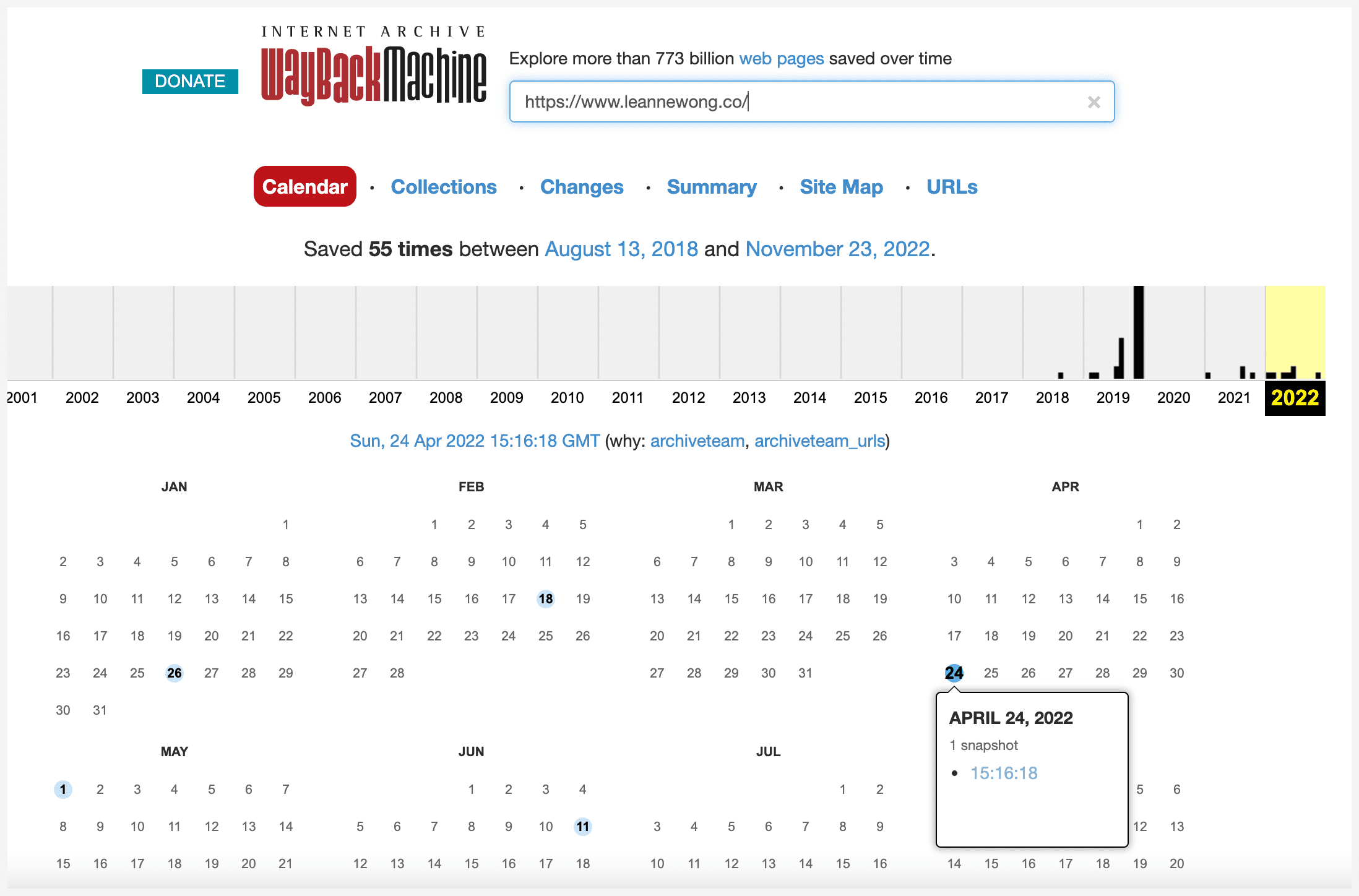
The Internet Archive uses crawlers to automatically search and index websites. However, the Wayback Machine does not contain every web page created. Some sites may not appear in the database. This is especially true for new content.
The Wayback Machine may also fail to record every change.
A snapshot may be taken days or weeks after an update.
Due to these details, the Wayback Machine does not always offer the most up-to-date log of when a web page was last updated.
Which method is best?
In the end, HTTP headers, XML sitemaps, and metadata may help you figure out the last time that a website underwent a major update, or a specific blog post was updated.
Finding the date of a website can have a significant impact on a variety of activities, such as performing research for a research paper.
For example, the date matters when relying on a blog post on face masks, statistical capacity indicators, Windows updates, and other time-sensitive information.
In search engine optimization, it is a good practice to keep website content updated and as relevant as possible. Finding the date when your competitors have updated their content for example, can give you a general idea of their SEO/content strategy.
With Google’s helpful content update, it may be a good idea to keep our content updated on a regular basis and maintain fresh content on our site.
The information from several years ago may not be as relevant compared to articles updated a few days ago.
The accuracy of these methods depends on the content management system. Some systems dynamically update the headers and sitemaps each time a visitor views a web page.
The snapshots stored on the Wayback Machine may offer the best practice for identifying the last major update of a web page.
You can use the snapshots to compare versions of a page or search for a security update.
If you cannot determine the last updated date of a web page, try contacting the website owner or administrator. Websites for legitimate businesses and online activities should contain contact information.
Make sure that you include the URL that you want to know more about. However, you may not always receive a response.







63 people reacted on this
As someone who reads a ton online, this article is going to come in handy! I need to check the publish date, especially on travel articles
I’ve often wondered how to tell if an article is still up to date—especially when I’m doing research or checking product reviews. I had no idea about the HTTP header trick. Learned something new today!
This was actually super handy — I never really thought about how often websites don’t show when they were last updated, and it can be so frustrating when you’re trying to tell if info is still accurate. Loved how Leanne broke it down in simple ways (especially the “inspect element” tip — who knew?).
I am so glad that I came across this! It was very helpful, looking forward to more of your tips…Thanks!!!
Wow! There’s a lot more ways to check this than I ever knew! I only knew two of these! Thanks for the tips!
Ha! I knowww. There are so many techniques to debug and check a website on a code level these days. 🙂
This was such a helpful read! I had no idea there were so many ways to check when a webpage was last updated. Your tips were really clear and easy to follow — definitely bookmarking this for future use!
Hey Kimberly! Happy to hear the article helped!
I love everything about your content. It’s literally saved my blog. Thank you so much for another great article!
Aw that made my day!
These are super helpful tips and tricks for checking out webpage publication dates. I didn’t realize it was this easy to find out this information!
Thanks, Emily! It’s amazing how easy it can be once you know where to look. 😊
Thanks Leanne! I never knew how to check an HTTP header to find the last modified date of a post. I’m pinning this for reference.
You’re so welcome, Kristine!
Great hacks and I’m so glad I came across this post because to be honest I never knew how to do this. I always ask my Tech team to check out all my website updates.
Hey Lisa! It’s always nice to learn a few things you can do yourself. I’m glad you found the post helpful!
This information is quite helpful. I just used your header method to check a medical report page I was on – found out it was published over 10 years ago! Will have to find something more recent.
Thanks, Stephanie! Glad the header method worked for you! Yeah i think it’s a super convenient way to spot-check for current info.
I didn’t realize there are so many ways to check last update date. I’ll keep these in mind for when I need them.
Hey Richard! Happy to hear you found the article helpful.
Your tips are very helpful and always lead me to think of more questions. This time you’ve got me thinking about updates vs republishing to a newer date. Does it make a difference for our rankings?
Thanks, Karletta! Hmm, great question. I think updating content often helps maintain the article’s relevance while republishing with a newer date might signal fresh content!
This is very helpful. I’ve always wondered how to do this especially for blog articles that show post dates.
Hey Ivan! I’m so glad you found it helpful.
I did not even know this was a thing! It crazy how much someone can do and what it involves for a website.
You’re very welcome! It’s amazing what goes on behind the scenes of a website, isn’t it? 😉
Such a helpful article! I didn’t realize there were so many ways I could find the last update for a webpage. I’m off to try some of these techniques!
Yay! I’m so glad you found it helpful—happy experimenting with the techniques! 😊
This post is very informative. Those are ways that can help me to catch up with the latest info on a web.
That’s great to hear!
I had no idea, now I do. TY. another question … how does a page update affect SEO rankings?
If the updated content on the page improves the content quality, it should help with rankings!
These are such great hacks to understand how old a post is and when it was last updated. I will try some of these tips!
Awesome 🙂
This is interesting, never knew about these ways except by looking at the date added by the blogger author/owner. Thank you for sharing!
Glad to help!
I had no idea how to do this before! Thanks so much for showing me – now I will know if something is outdates.
Happy to share!
There is a lot of information here that I need to keep in mind. Your sharing is greatly appreciated.
So glad to hear that!
hello, thank you for these. You made our searches easy. Im interested in Using Google Cache. Ive never tried this before.
My pleasure! That’s an easy and smart method – give it a try!
Whether you are a webmaster or a user, sometimes you may need one of these dates for various purposes like citing or linking on your page or for content validation. Thank you do much for giving us many options.
Yeah for sure!
Ooohhhh….thank you for sharing these ways, Leanne! I was only familiar with the Google Search method. It’s high time I tried the https header method!
My pleasure!
Really useful guide on checking webpage updates! Love the easy screenshots and explanations.
Wait, what? I’ve seen these on sites before, but I never thought about using one. This is so smart!!
Thanks, Jennifer!
oh wow, there are so many ways to check. Still cant decide which is the best. I will just have to try and see.
Quite interesting! I had no idea that you could do this so easily. A good tool to know about.
Great post! It’s good to know when a website has been updated, I just didn’t know there were so many ways to check.
I like this. Knowing how to check a web page’s “last modified” date is like having a built-in fact checker. It makes sure we’re always getting the most up-to-date and reliable information.
Yeah! I’m always looking at the top of an article’s last updated or published date to see how recent it is!
I didn’t realize there were ways to check and see when a page had been updated. That information is good to know!
This is fascinating. I’ve been writing pages for the internet since way before the web existed. I had no idea there were so many ways to find out the update date.
Old content is gold. 😉
What a useful post about how to check when a blog post was last updated. This will be helpful when I’m writing citations. Thanks for this awesome content as always.
Means a lot, Julie! Glad you dropped by the blog.
This is very detailed information if you want to have your date updated on your website. Great resource. Thank you
Happy to help, Kimberley!
Super informative and an easy read. I haven’t heard if keycdn before so I found that nice and I will check them out
Thank you!