

Anchor links are jump links that take you to a specific section on a page.
When you write a long post, anchor links can improve the user experience by jumping directly to a specific section on the page.
Users can skip certain parts of a long content page and jump to the section they are most interested in. Creating anchor links can be advantageous for SEO and user experience.
There are different ways to create anchor links in WordPress.
- WordPress Gutenberg Editor
- WordPress Classic Editor
- Plugins – Easy Table of Contents
One of the easiest ways is to do it manually with the Gutenberg editor or Classic text editor on WordPress.
Method 1: Gutenberg Editor
The WordPress Gutenberg editor makes it very easy to add anchor links and create a table of contents to any post without using a plugin.
With Gutenberg blocks, you can create an anchor link with any heading or paragraph.
In this example, I will be creating an anchor with the H2.
Step 1: Create an anchor
Anchors are usually the main headings of your page such as H2-H6.
Highlight the heading you want to create an anchor for. Then, click on ‘Advanced‘ from the Block view. Give your anchor a name in the ‘HTML anchor’ box.

Step 2: Create the link matching the anchor
Now link it with the anchor name you typed in the HTML anchor box by adding a # prefix.

That’s it! Now you have created an anchor link. When you click on the ‘What are anchor links’ text at the top, it will jump to that section.
You can create a table of contents by making the headings a jump link with this method.
Method 2: How to manually add anchor links in WordPress Classic Editor
You can create anchor links directly on any page or blog post on WordPress in HTML code.
The process is similar to Gutenberg’s editor but needs a bit more work on the HTML.
Step 1: Create the anchor in the classic editor
First, create the text for your anchor and click on the link icon. Create an anchor name and add the # prefix.

I recommend writing a descriptive anchor name. Usually the name of the heading.
Step 2: Add the ID in the destination heading
Then, add the anchor id in the destination heading you want the link to jump to. You need to switch to the ‘Text‘ view to add the anchor attribute in the HTML.
Use the same anchor name you wrote in step 1.

Voila! Anchor link built.
Method 3: WordPress Plugins to Create a Table of Contents
There are awesome free WordPress plugins that can easily create a table of contents for WordPress websites. Such as Tiny MCE Advanced and Easy Table of Contents.
Tiny MCE Advanced
This free plugin has over 2+ million downloads with 322 reviews and an average rating of 4.5 out of 5 stars. It supports both the Gutenberg block editor and classic editor on WordPress.
Easy Table of Contents
Another awesome free plugin to insert a table of contents for any blog post or page on WordPress. This plugin has the option to automatically insert a table of contents for any post.
Just insert a shortcode, and a table of contents will be automatically generated!
It has over 200,000+ downloads with an average rating of 4.6 out of 5 stars.
What are anchor links?
Anchor links are essentially a menu of jump links. They act as a table of contents for your blog post.
An anchor link brings you to different sections on the same page. This allows you to quickly get the information you are looking for.
When should you use anchor links?
Anchor links are commonly used in lengthy blog posts to allow readers to skip the rest of the content and instantly get to a specific section they want to read.
Essentially, an anchor link is an HTML anchor. It is the <a> element, with the href attribute, that becomes a hyperlink.
Benefits of using anchor links
Organic search results
Anchor links (page jump links) can appear on Google organic search results (SERPs) if Google thinks they are relevant to the search query.
Google indexes on-page anchors, content, and markup found on the page.
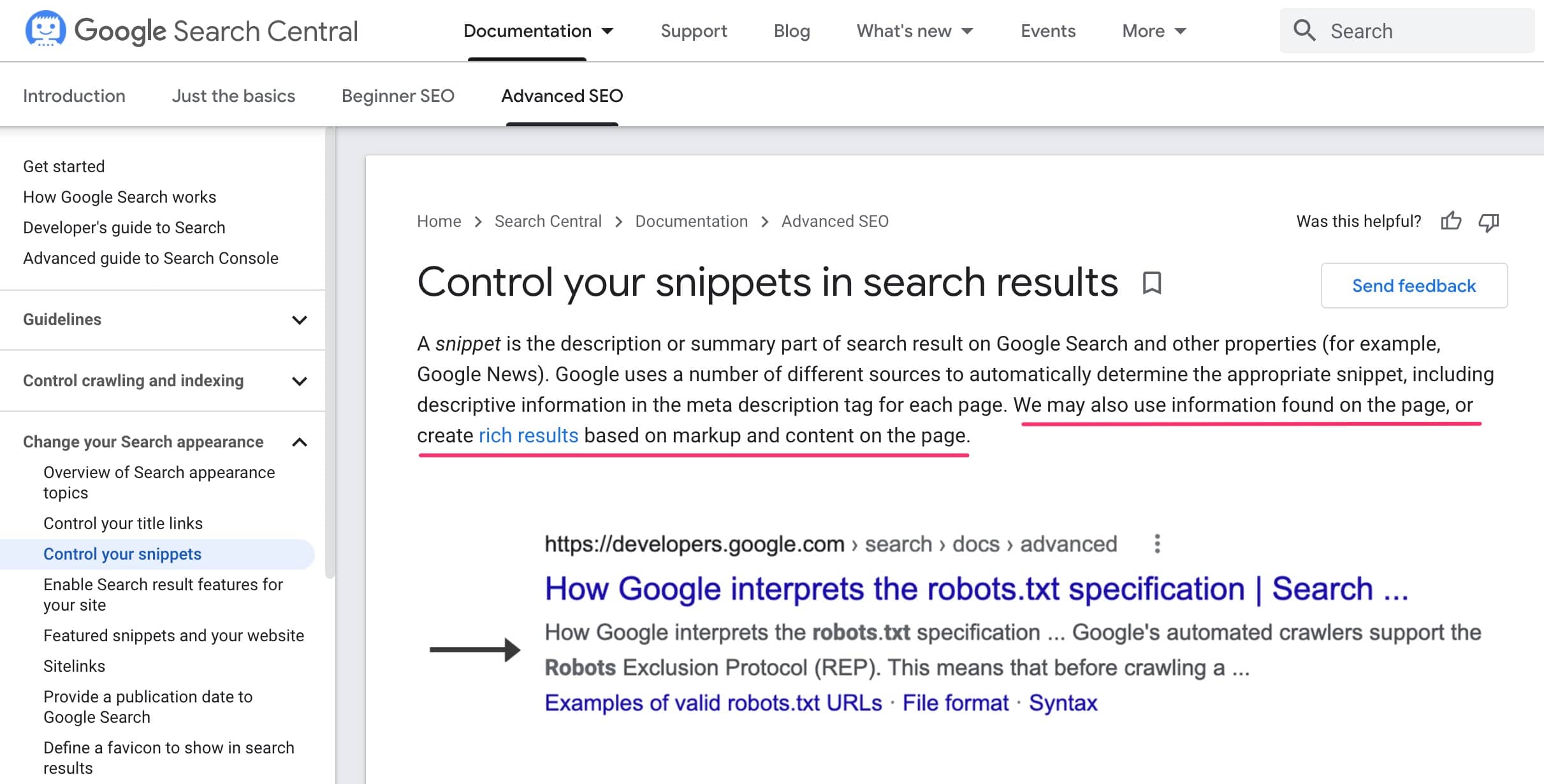
Using anchor links as part of the search snippet was talked about on Google’s official blog here, and here.
As anchor links are beneficial for long-form content, most of my pillar posts (3000+ words) have a table of contents that I created manually with the HTML Anchor Element.
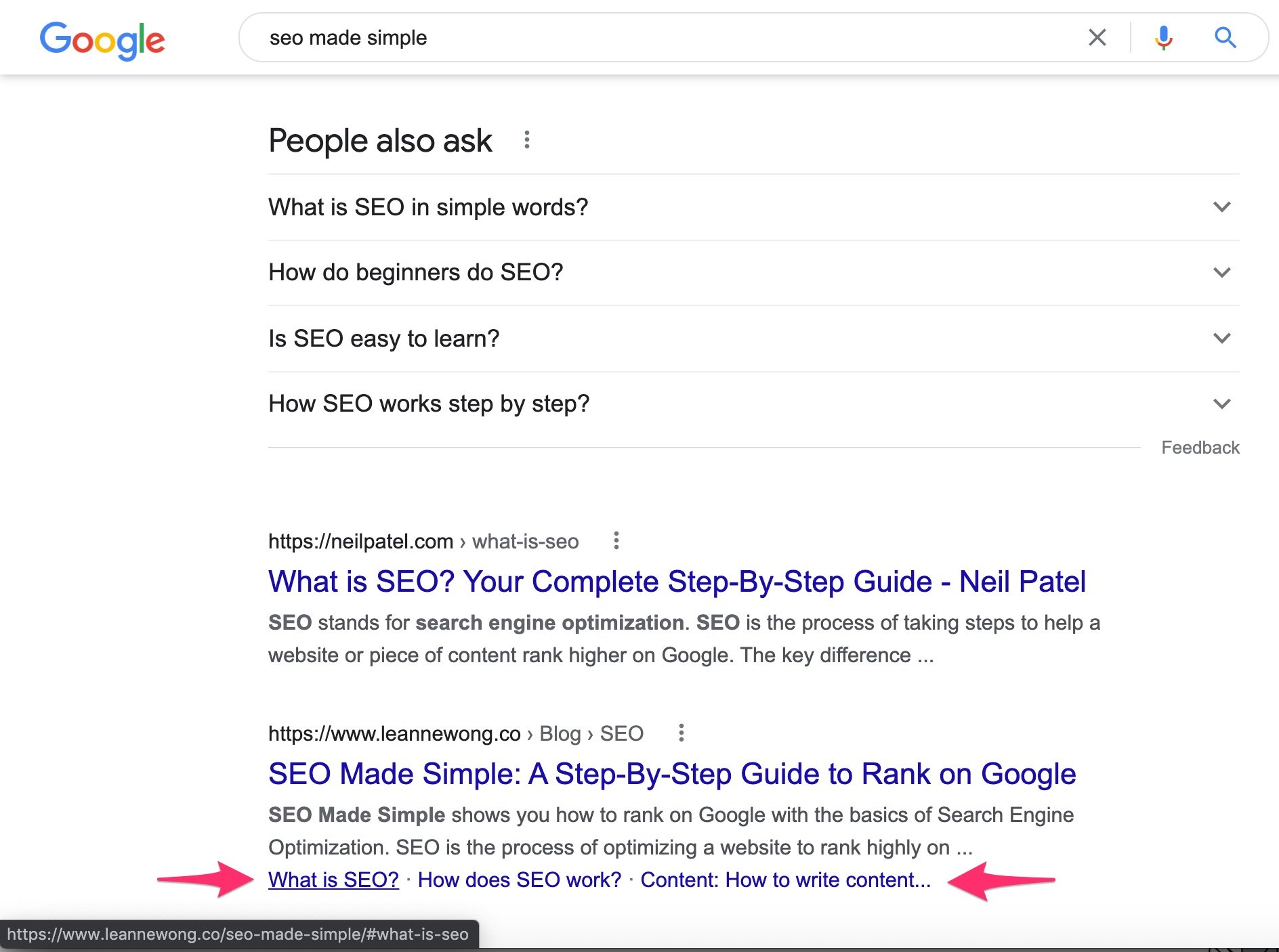
In the above screenshot, Google has displayed 3 anchor links for my SEO Made Simple blog post ranking on SERPs. I usually see 2-3 anchor links for such snippets.
If your page has anchor links, they would appear under the meta description. Google calls them ‘in-snippet‘ links.
In-snippet links only appear for relevant queries
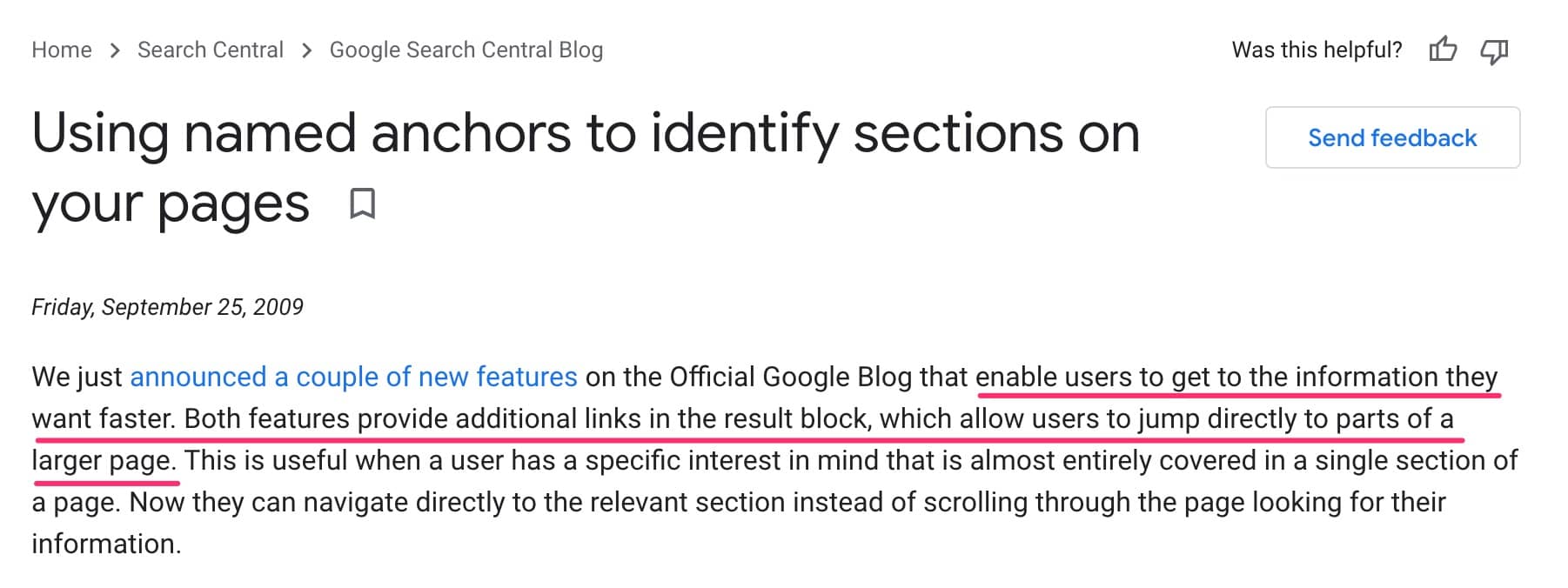
These anchor links are called ‘in-snippet’ links and were first introduced by Google in September 2009.
By showing descriptive anchor links on SERPs, Google can help users find the information they want faster. People can click on any of these anchor links in an organic listing and it would take them to a specific part of the page.
Also, this additional line of text below the meta description adds more context to your organic listing. This could improve CTR and can drive more traffic.
Google will show anchor links in the snippet if it determines they are relevant to a search query.
So this means that not all results will have it. Even if you have added anchor links on the page, if Google does not feel that it is descriptive enough or appropriate to the search query, then it will not show.
How to increase your chances of anchor links showing on SERPs
Google has suggested a few ways to increase your chances of appearing on SERPs with anchor links:
- Ensure long-form content and its multi-topics are well structured and broken into logical, distinct sections.
- Ensure each section with an anchor has a descriptive name. Such as ‘Step 1: How to do keyword research’ instead of ‘Section 1.1’.
- Ensure your page contains a table of contents that links to the anchor links.
Featured snippets
Another benefit of using anchor links is featured snippets.
A page’s jump links have a good chance to show as a featured snippet on SERPs as they create more relevance. A table of contents can help users jump directly to a specific part of a page to find information faster.
And Google wants to help people find the information they need as quickly as possible.
Though adding anchor links alone won’t help much to rank in featured snippets unless you are already ranking on page 1. Featured snippets are more likely for results already having strong authority and first page rankings.
User experience
The main benefit of anchor links is that it provides a better user experience.
A table of contents helps users get the information they are most interested in. By jumping directly to a section of a long page, you can find the content you need quickly. This is also why Google supports anchor links in the search results.
When you have long-form articles, anchor links can be very beneficial for the user’s reading experience. I publish a lot of in-depth guides on the blog (3,000+ words) and having a table of contents helps my readers jump to any section they are interested in quickly.
This menu of links sits at the top of the page. This serves as a table of contents and readers can easily jump to the section they want.
As users can directly jump to the anchor destination, the page scroll experience is smooth. They can jump to a different section of that post without needing to scroll up and down.
Cons of anchor links
There are a few drawbacks of anchor links.
Average time on page
With page jumps, people can quickly find the information they need and exit right after. There is a tendency to exit the page without interacting with the rest of your website.
This could reduce the average time on the page.
I don’t think this is necessarily a bad thing because people have found what they were looking for. If your content was helpful, then they might stay and sign up for your newsletter or explore the rest of your website.
Ad revenue
Anchor links potentially decrease the need to scroll through a long page. This could reduce the number of clicks and impressions to ads on your page. For websites that rely heavily on advertising, using anchor links could reduce your ad revenue.
Domain changes and redirects
Anchor links only work with the matching anchor destination name and anchor ID. In the event that the anchor name changes, the anchor link would not work.
Domain name changes would also require redirects. It is always a bit complicated with URL structures, but it is fixable.





22 people reacted on this
I always love that “table of content” but don’t know the exact name for them. Thank you for guiding in detail how to create anchor links this is really helpful.
I always thought that jump links are really cool. However I never knew what they were called. As well, I didn’t know how to make them. Thank you for filling in the blanks.
Aaaahhhhh….so, it is like having a table of contents of some sort on the blog, right? I didn’t know this. I like it already.
This is so helpful and informative. I will share this with my friend who is a long-time blogger. Thank you!
thanks for the detailed tutorial about anchor links, an absolute need esp for new bloggers.
I have been enjoying Gutenberg (over the old WordPress editor) and also the new updates. These are useful tips for making it easier to update links.
This is interesting, the cons don’t look so bad. I’m going to follow these tips. Thank you for sharing!
Cheers 🙂
Oh gosh this is exactly what i need.. i always came across blogs who got their content neatly sorted via table of contents that makes their blog post easy to navigate.. i wish i can apply them on my posts too because some of them tend to be very lengthy.. i will definitely try these methods and see which one i’ll find easier to manage. Thank you for sharing
It’s easy to create a table of contents with just HTML!
I did this in my website as well, but i used a plug-in instead of manually coding it. I understand the html of it all, but i would recommend installing plug-ins as well so it automatically does these things for you!
Yep, plugins have their benefits too.
Anchored links are most useful for enhancing the user experience. Thanks for sharing how we can easily make them on WordPress.
Happy to help! It’s easy to manually build anchor links and a table of contents.
This post is helpful as ever for new bloggers like me. I now understand the importance of using anchor links. This helps my posts to be seen on google.
Cheers 🙂
Oh this is so helpful and informative post. Using anchor text gives a better structured post. Though I never used but your post had explained everything so nicely.
It does help with structuring content on the page!
I’m still learning the ins and outs of WordPress so this post was extremely helpful! Thank you 🙂
Happy to help!
Oh this is super helpful! I dont know that I knew how to do this a few years ago
Cheers!