

After creating your blog, I recommend setting up a Google Search Console account right away. It’s a free tool by Google that tells you how your website is ranking on search results. Previously, this was called the Google Webmaster tool.
Think of Google Search Console as a performance tool for SEO. You’ll learn important things about your website, like:
- How much traffic is my website getting from Google?
- What are my top-ranking keywords and their average ranking position on search results?
- Which keyword queries are people using to find my site on Google?
- Which keyword queries drive the most clicks?
- Which keyword queries drive the most impressions?
- Has Google detected any errors on my site? Are they severe?
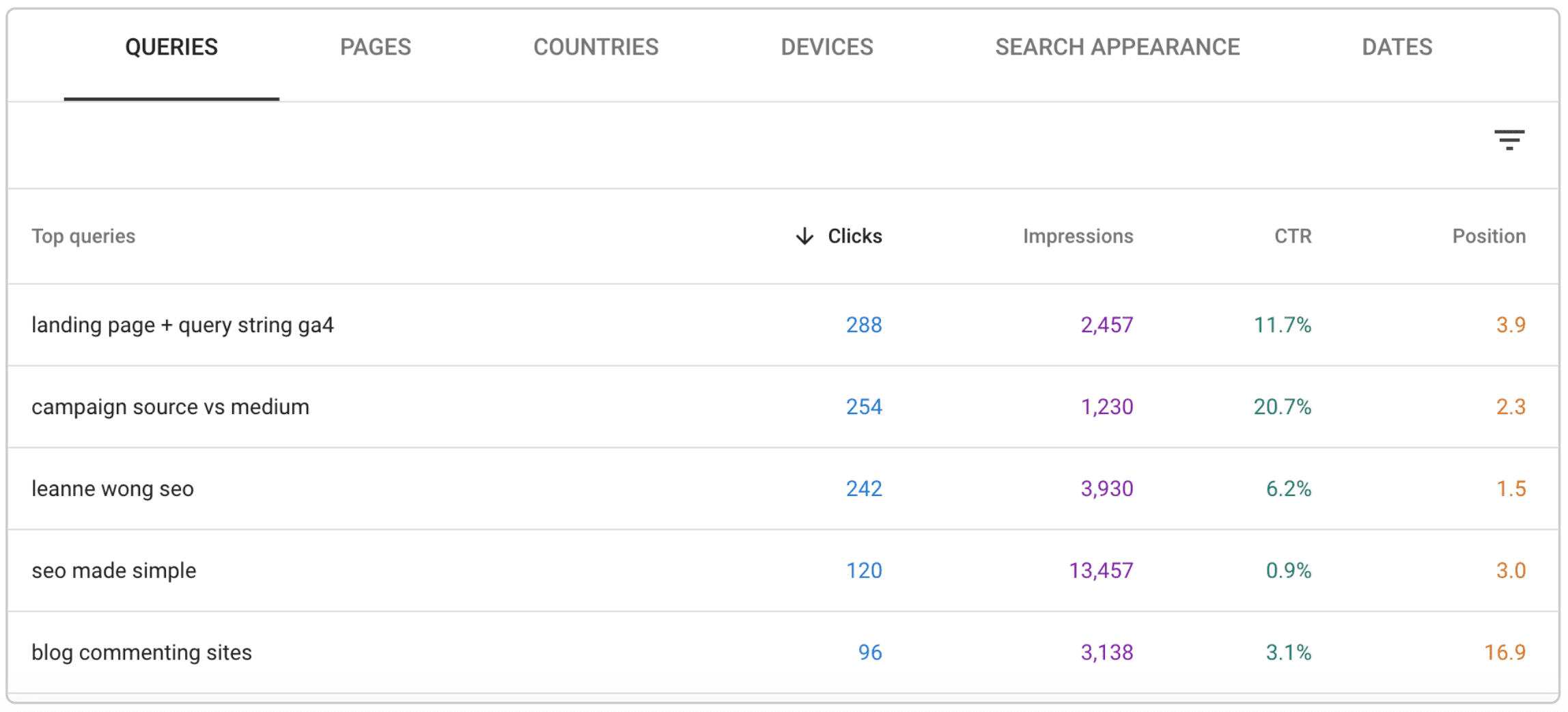
These are all SEO insights you can find in Google Search Console. All we have to do is create an account and link up your blog to the console. The earlier you set this up, the more data search console can collect and the better you can optimize your site for SEO.
1. Create a free Google Search Console Account
Head over to Google Search Console and create a free account. Then, add your website property.
You can choose between Domain or URL prefix.
Choose Domain if you’re comfortable with DNS verification, and choose URL prefix if you prefer to add code to your website. Most people choose the URL prefix.
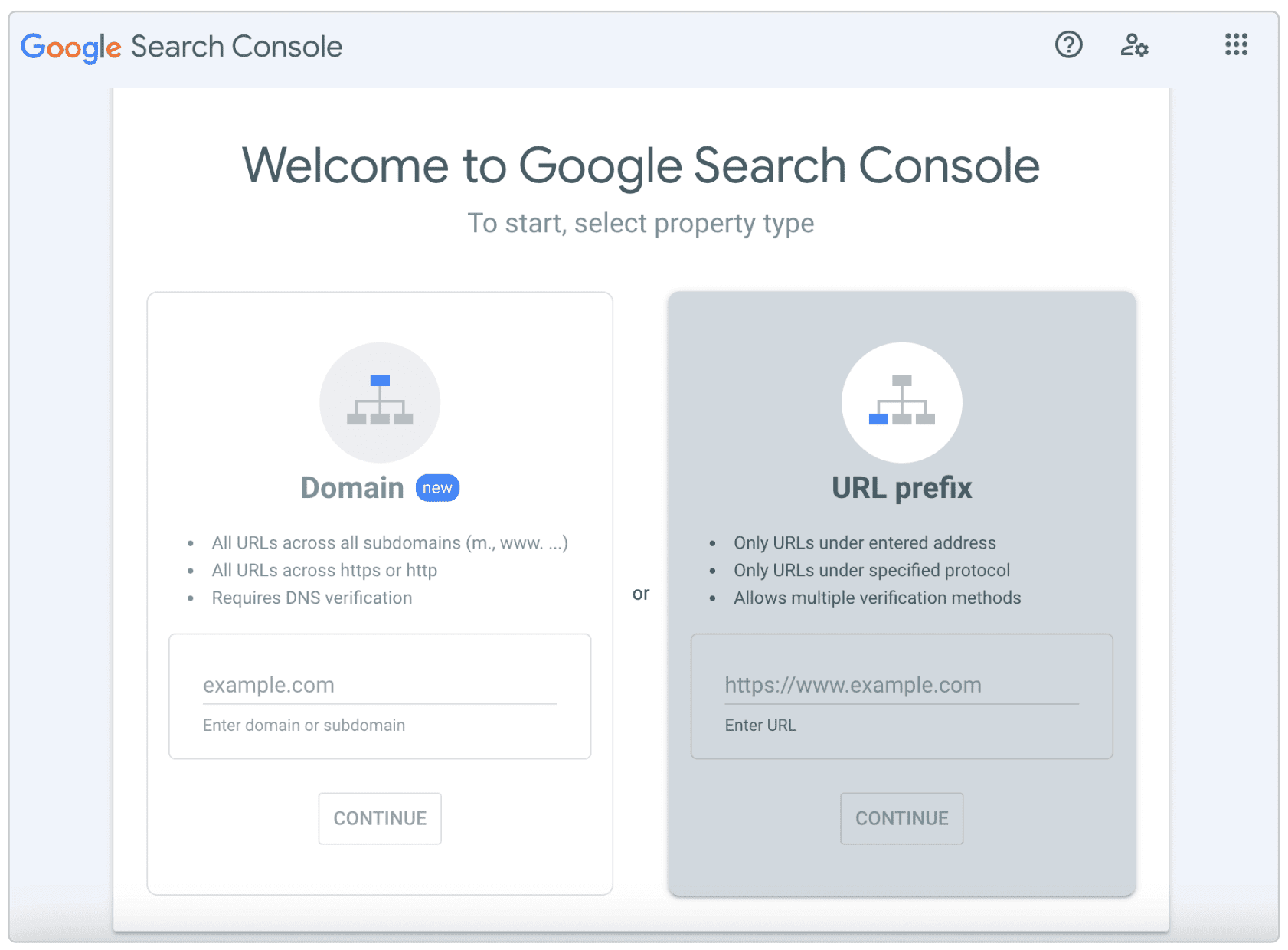
Make sure you add the right version of your site to the console (http or https, www or non-www) version of your site. Enter your website URL, and click continue.
2. Verify ownership
Now, at the verification page, you have a few options to verify. The recommended method is to upload an HTML file to your server. This means you have to upload the HTML verification file to the root folder of your website, in the cpanel of your web hosting account.
This might be a little intimidating for those not familiar with code. Thankfully, there are other verification methods that are way simpler.
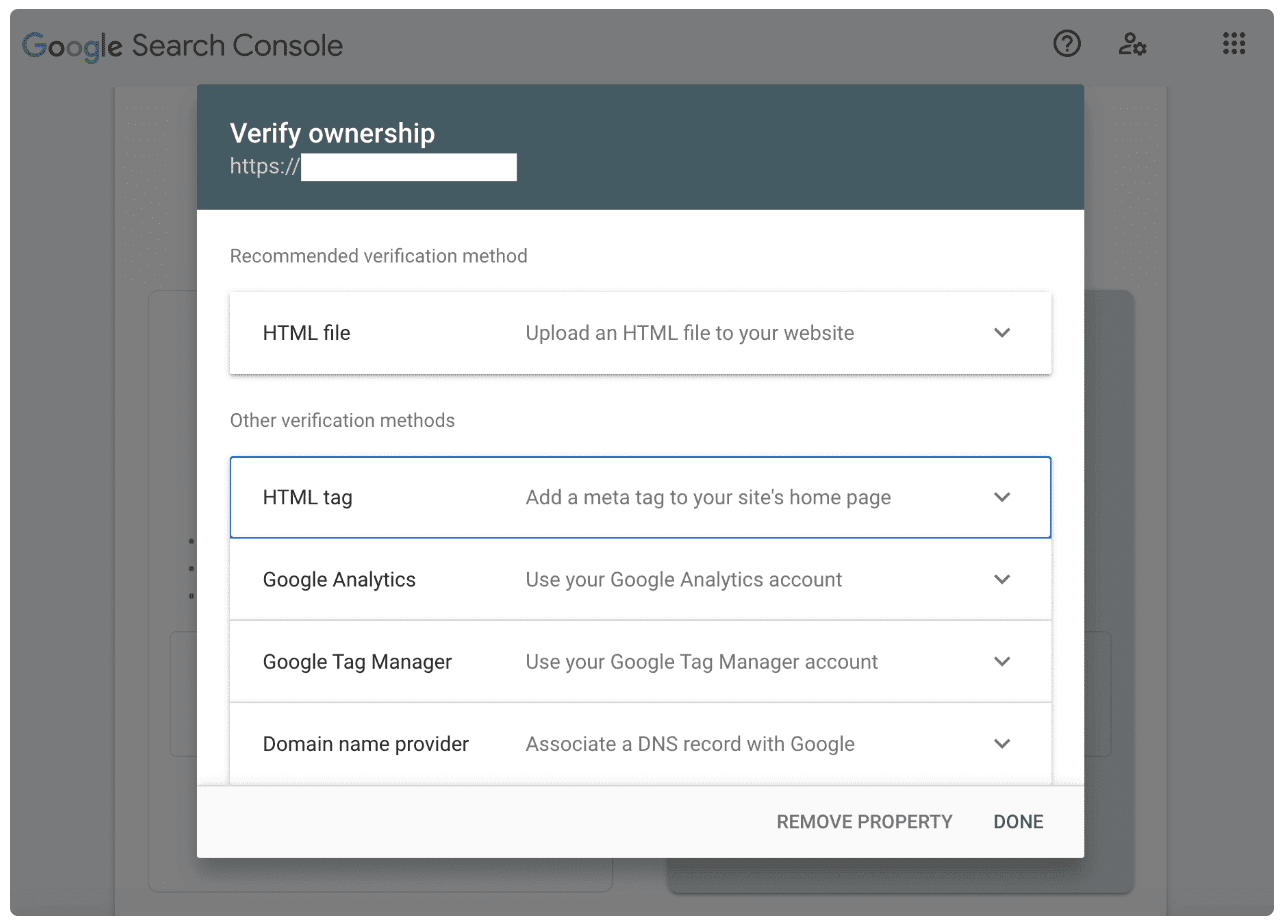
3. HTML tag method to verify your Google Search Console property
I recommend using the first option as it is the easiest. All we have to do is copy and paste the meta tag in the <head> section of our site. Easy peasy.
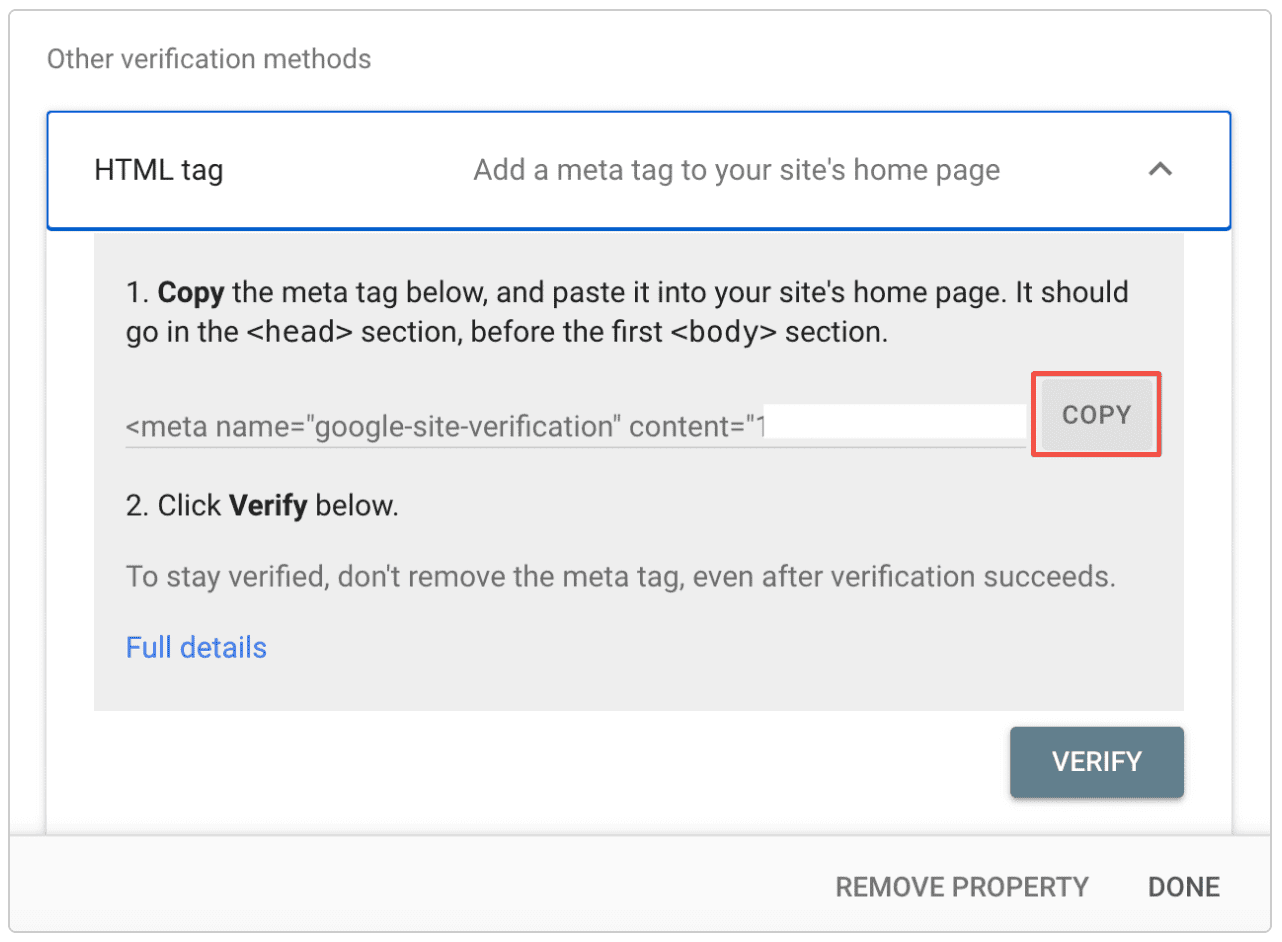
Add the meta tag to your website and verify Google Search Console
Simply copy the entire line of code there and paste it in the <head> section of your site.
If you’re on WordPress, you can install the Insert Headers and Footers plugin and paste the tag using the plugin.
If you have the Yoast SEO plugin, you can paste the meta tag in the ‘Webmaster Tools” tab. This is by far the easiest and cleanest method if you are using WordPress.

YAY! That’s it, we are done!
Check your website’s SEO performance in Google search console
Once you’ve set up and successfully verified your Google Search Console account, you should see data immediately. Like this:
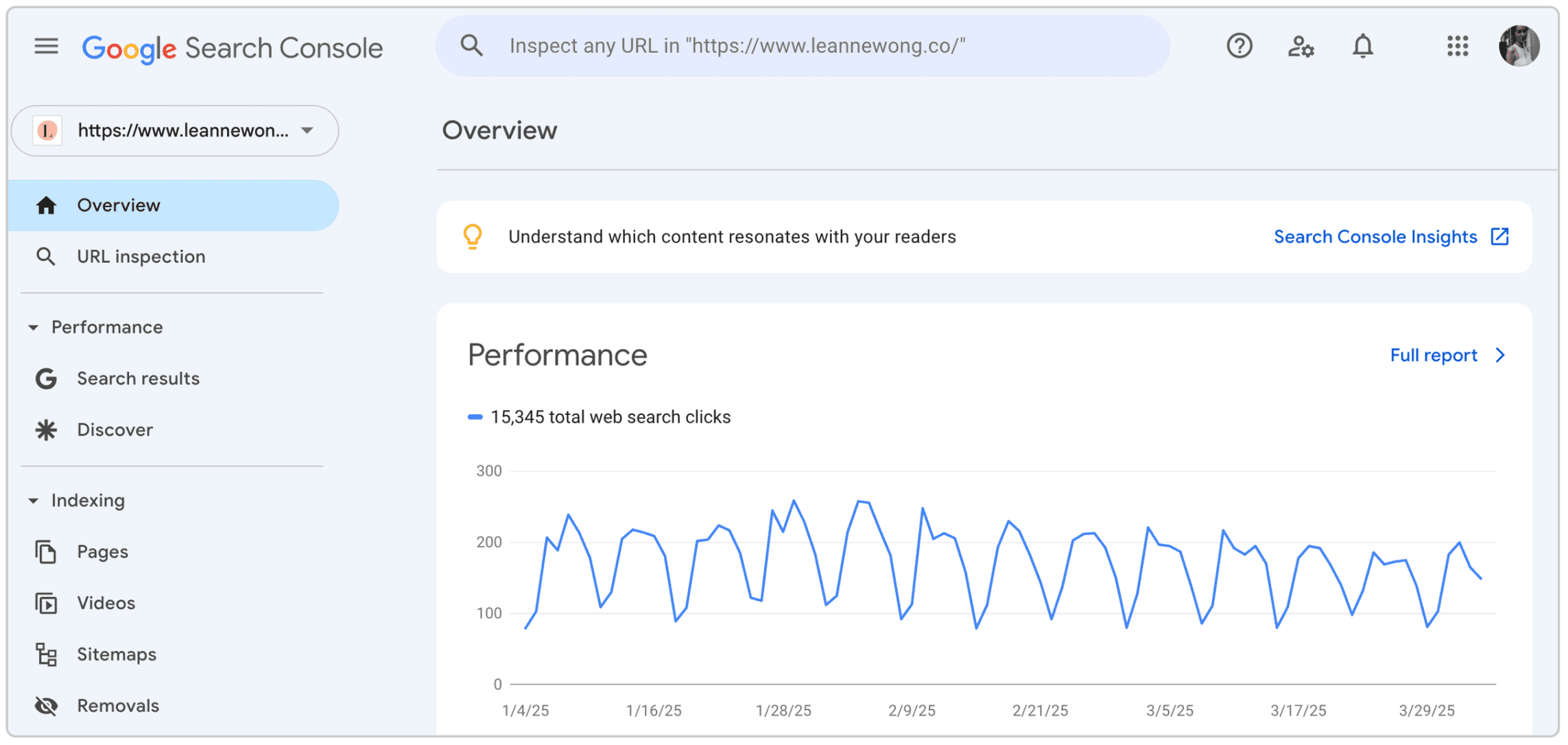
For more info, check out Google’s support article on data collection and verification here.





28 people reacted on this
Such an impressive guide on how to set up google search console for blog, very informative and helpful
Thanks, Robin!
Google Search Console is a best web service by Google that I’ve been taking the past 7 years and I never regret using it. Search Console tools and reports help you measure your site’s Search traffic and performance, fix issues, and make your site shine in Google Search results.
That’s awesome, Robert!
I actually really needed to know this! Thank you for sharing!
Cheers 🙂
I’m glad that I came across this amazing article. Thanks for the article with lot of different and meaningful conversations.
One more thing, How do I grant access to my Google console?
Hey David, I think you can grant access under settings in GSC https://support.google.com/webmasters/answer/7687615?hl=en
Wow so much information here. This is great for new bloggers especially. Thanks for sharing.
Cheers 🙂
I’m still a newbie to all these analytical things when it comes to blogging, so really enjoying your posts!
So so happy to hear this! Be sure to join my free 4-Day SEO Bootcamp as well – https://leannewong.teachable.com/p/seo-for-beginners-bootcamp
I definitely need to work on improved performance with my site SEO. I know Yoast helps me quite a bit but I do need to check up on some errors.
Yes!!
This article is so informative and helpful, my friend was asking me about this the other day and I wasn’t sure how to do it, thanks for sharing
No problem! Glad to help.
It would save me so much time if I got this post like few years ago because I spent like a month understanding this.
Oh no! I hope you’ve subscribed then 🙂
These are all great pieces of advice that I know work. I struggle to get link building done.
Link building is a big part of SEO. Glad to help!
Thanks for the detailed guide. This is really helpful.
So happy to hear that, Jon!
I actually really needed to know this! Thank you for sharing!
No problem!
Wow! That was so clear, concise and easy. I appreciate the step by step instructions.
Happy to hear that, Cindy! Thank you!
I have had Search Console for some time and I love it! This is a great article for people who need to get it for their websites.
Me too!! Thanks dear 🙂